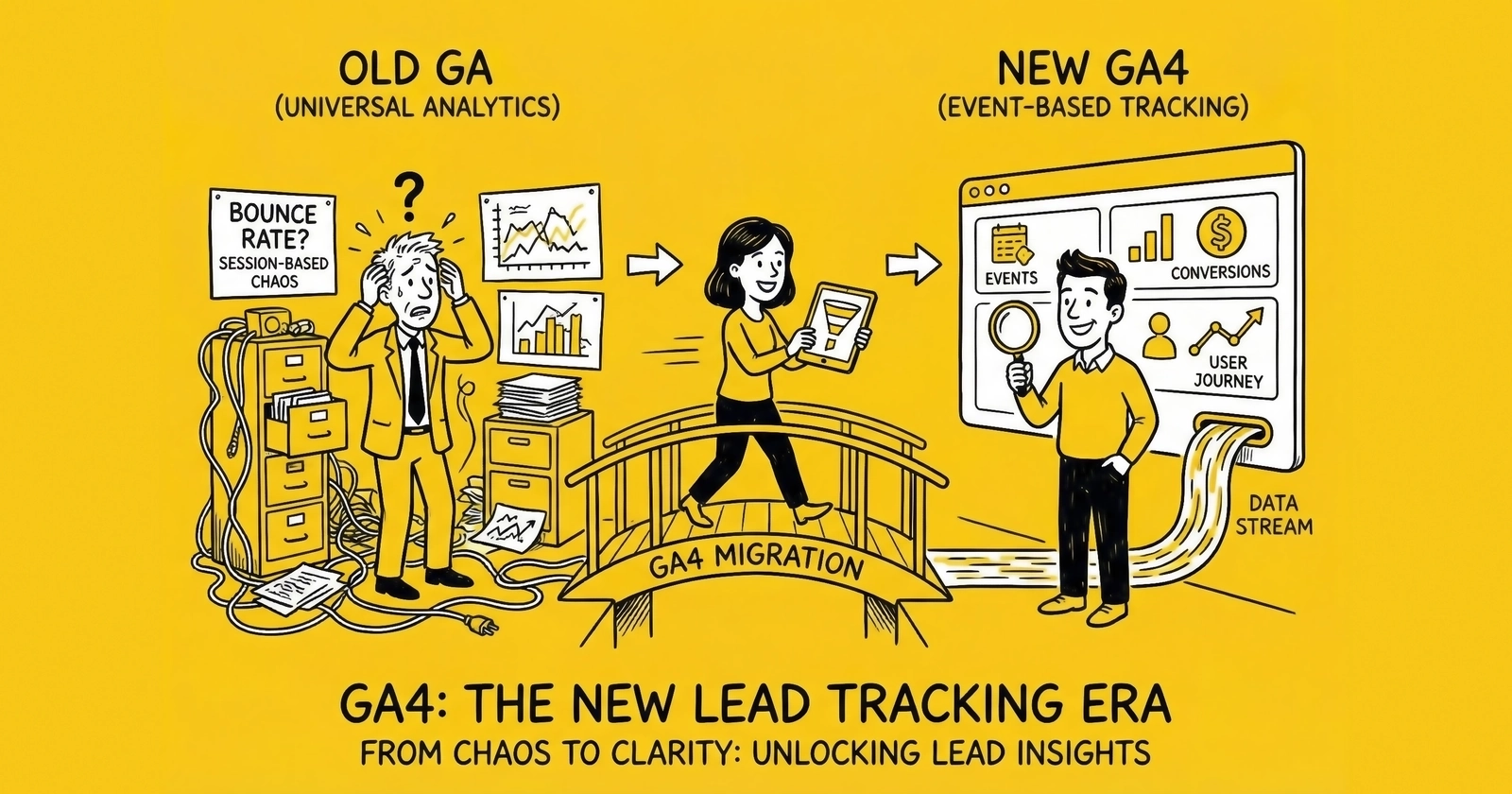
Your lead generation business runs on data. GA4 gives you the foundation to track every form submission, phone call, and conversion event with precision. But only if you implement it correctly.
Google Analytics 4 represents a fundamental shift in how lead generators track and measure their operations. The event-based architecture replaces the session-focused model of Universal Analytics, creating both opportunities and challenges for operators who depend on accurate attribution to make profitable decisions.
The stakes are significant. Lead generation economics depend on knowing true cost per lead by source. A 10% error in attribution can mean the difference between a profitable traffic source and a money-losing one. When you operate on 15-20% net margins, measurement accuracy is not optional infrastructure. It is the foundation of sustainable unit economics.
This guide covers everything lead generators need to know about GA4: the event model that powers it, the specific events you should track, implementation approaches for forms and calls, integration with advertising platforms, and the reporting workflows that turn data into decisions. Whether you are migrating from Universal Analytics or building a new tracking foundation, this is the comprehensive reference you need.
Understanding GA4’s Event-Based Architecture
Universal Analytics tracked sessions and pageviews. A session started when a user arrived and ended when they left or were inactive for 30 minutes. Events existed but were secondary to the session-centric view.
GA4 inverts this model. Everything is an event. Pageviews are events. Clicks are events. Form submissions are events. This architectural change has profound implications for lead generation tracking.
The Event Model Explained
Every interaction in GA4 is recorded as an event with associated parameters. When a user submits a lead form, you fire an event (like generate_lead) with parameters describing that submission (lead value, form name, traffic source, product interest).
Events in GA4 fall into four categories:
Automatically Collected Events: GA4 fires these without any configuration. page_view, session_start, first_visit, and user_engagement happen automatically when you install the GA4 tag. These provide baseline traffic data but lack the specificity lead generators need.
Enhanced Measurement Events: Available through a toggle in GA4 settings, these include scroll, click, file_download, video_start, video_complete, and form_start/form_submit. The form events are particularly relevant but come with limitations. Enhanced measurement tracks form submissions generically without capturing the specific data fields that determine lead value.
Recommended Events: Google defines standard event names and parameters for common business actions. For lead generation, the key recommended events include generate_lead, qualify_lead, working_lead, close_convert_lead, and disqualify_lead. Using recommended events enables better integration with Google’s reporting features and ensures compatibility with future updates.
Custom Events: When recommended events do not fit your needs, you create custom events with custom parameters. Custom events give you complete flexibility but require more implementation effort and may not integrate as seamlessly with Google’s standard reports.
Key Events: The New Name for Conversions
In March 2024, Google renamed “conversions” to “key events” in GA4 for properties not linked to Google Ads. Properties linked to Google Ads retain the “conversions” terminology because these metrics feed directly into advertising optimization algorithms.
The distinction matters for lead generators. A key event is any event you mark as significant for measuring your business success. When linked to Google Ads, these key events become conversions that Google Ads uses for Smart Bidding optimization, audience building, and campaign reporting.
You can mark any event as a key event in the GA4 interface. For lead generation, typical key events include form submissions, phone calls initiated, chat conversations started, and quote requests completed. The key event designation tells GA4 to track this event in the conversion/key event column and to include it in conversion-focused reports.
Event Parameters and Custom Dimensions
Parameters add context to events. When a generate_lead event fires, parameters might include:
value: The estimated worth of this lead (useful for revenue optimization in Google Ads)currency: USD, CAD, or other currency codelead_source: The specific form or landing page that generated the leadproduct_interest: Auto insurance, home insurance, solar, mortgage, or whatever vertical you servelead_quality_score: An initial quality assessment if available at capture
Parameters are not automatically available in reports. To use parameters in GA4 reporting, you must register them as custom dimensions or custom metrics. GA4 allows up to 50 custom dimensions and 50 custom metrics per property. For most lead generation operations, this is more than sufficient.
Essential Events for Lead Generation
Lead generation tracking in GA4 centers on capturing the complete customer journey from first touch through lead submission and, ideally, through downstream conversion. Here are the events every lead generator should implement.
The generate_lead Event
This is the primary event for tracking lead form submissions. Google recommends this event specifically for lead generation businesses, and using the standard name ensures compatibility with Google’s reporting features.
When to fire: Every time a user successfully submits a lead form. This should fire on the confirmation page or on successful form validation, not on form load or button click.
Recommended parameters:
value: Estimated lead value in dollars (for revenue-optimized bidding)currency: Currency code (USD, CAD, GBP, etc.)lead_source: Identifier for the specific form or pageform_name: Human-readable form identifiervertical: The product vertical (auto_insurance, solar, mortgage)state: Geographic location if applicable for your business
Implementation example (dataLayer push for Google Tag Manager):
dataLayer.push({
  event: 'generate_lead',
  value: 35.00,
  currency: 'USD',
  lead_source: 'auto_insurance_landing_v2',
  form_name: 'Auto Quote Request',
  vertical: 'auto_insurance',
  state: 'CA'
});
Form Engagement Events
Beyond the final submission, tracking form engagement reveals where users abandon and where your forms succeed. These events help optimize conversion rates.
form_start: Fires when a user first interacts with a form (clicks into the first field). This establishes your form engagement denominator.
form_field_complete: Fires when a user completes a specific form field. Track key fields like email, phone, and address to understand where abandonment occurs.
form_step_complete: For multi-step forms, fire this event when users complete each step. Track step number and step name as parameters.
form_abandon: If you can detect abandonment (user leaves the page or navigates away without submitting), fire this event with the last field completed as a parameter.
These events create a funnel visualization in GA4’s exploration reports, showing exactly where users drop out of your lead capture process.
Phone Call Events
For lead generators using pay-per-call or tracking inbound calls from landing pages, phone events are essential.
phone_click: Fires when a user clicks a clickable phone number. Include parameters for the phone number and page location.
call_start: Fires when a call actually connects (requires call tracking software integration). Include parameters for call duration target, caller phone, and inbound number.
call_conversion: Fires when a call meets your conversion criteria (duration threshold, IVR completion, sale). Include call duration, disposition, and value.
Most call tracking providers (CallRail, Invoca, Retreaver, Ringba) offer native GA4 integration. When a call converts, the provider fires events to GA4 with full attribution back to the original traffic source.
Lead Qualification Events
If your operation includes lead qualification steps after initial capture, track these to understand lead quality by source.
qualify_lead: Fires when a lead meets your qualification criteria. Parameters include qualification reason and qualified value.
disqualify_lead: Fires when a lead fails qualification. Include the disqualification reason as a parameter (invalid phone, out of service area, duplicate, fraud).
working_lead: Fires when a sales rep contacts a lead. Track the attempt number and contact method.
close_convert_lead: Fires when a lead converts to a sale. Include the sale value, product purchased, and time from lead to sale.
close_unconvert_lead: Fires when a lead is marked as unconverted after follow-up. Include the unconvert reason.
This sequence creates a full funnel from lead capture through sales outcome, enabling true ROI measurement by traffic source.
Implementation Methods
GA4 tracking can be implemented through several approaches, each with different complexity and capability tradeoffs.
Google Tag Manager (GTM)
Google Tag Manager remains the recommended approach for most lead generation operations. GTM provides a visual interface for tag management, version control, testing environments, and easy updates without code changes.
Setting up GTM for GA4 lead tracking:
- Create a GA4 Configuration tag with your Measurement ID (G-XXXXXXXXXX)
- Set the tag to fire on All Pages
- Create event tags for each lead generation event (generate_lead, form_start, etc.)
- Create triggers based on form submissions, button clicks, or dataLayer pushes
- Use variables to capture dynamic values (form name, lead value, page URL)
DataLayer Implementation: The most reliable approach is pushing events to the dataLayer from your website or forms, then having GTM listen for those events. This separates your tracking logic from your form logic and makes maintenance easier.
// Push to dataLayer when form submits successfully
document.getElementById('leadForm').addEventListener('submit', function(e) {
  dataLayer.push({
    event: 'generate_lead',
    value: calculateLeadValue(),
    currency: 'USD',
    lead_source: getFormSource(),
    vertical: getVertical()
  });
});
In GTM, create a Custom Event trigger that fires when the event name equals “generate_lead”, then create a GA4 Event tag that sends the event with all associated parameters to your GA4 property.
Direct gtag.js Implementation
If you prefer to implement GA4 directly without GTM, the gtag.js library provides the same functionality with code-based configuration.
Basic setup:
<!-- Google tag (gtag.js) -->
<script async src="https://www.googletagmanager.com/gtag/js?id=G-XXXXXXXXXX"></script>
<script>
  window.dataLayer = window.dataLayer || [];
  function gtag(){dataLayer.push(arguments);}
  gtag('js', new Date());
  gtag('config', 'G-XXXXXXXXXX');
</script>
Tracking a lead event:
gtag('event', 'generate_lead', {
  value: 35.00,
  currency: 'USD',
  lead_source: 'auto_insurance_landing_v2'
});
Direct implementation gives you complete control but requires code changes for any tracking updates. For operations with dedicated development resources, this approach can be cleaner than GTM.
Server-Side Tracking
Client-side tracking (both GTM and gtag.js) faces signal loss from ad blockers, browser privacy features, and cookie restrictions. Server-side tracking routes data through your servers before sending to GA4, recovering 20-40% of otherwise lost conversions.
GA4 supports server-side tracking through the Measurement Protocol, which accepts HTTP POST requests to send events directly from your server.
Measurement Protocol implementation:
POST https://www.google-analytics.com/mp/collect?measurement_id=G-XXXXXXXXXX&api_secret=YOUR_API_SECRET

{
  "client_id": "unique_client_id",
  "events": [{
    "name": "generate_lead",
    "params": {
      "value": 35.00,
      "currency": "USD",
      "lead_source": "auto_insurance_landing_v2"
    }
  }]
}
The client_id must persist across sessions. Capture it from the _ga cookie or generate a consistent identifier tied to the user. For server-side events to attribute properly to user journeys, the client_id must match what GA4 collected during the browser session.
GTM Server-Side provides a managed approach to server-side tracking. You deploy a server container that receives events from your web container, processes them, and forwards to GA4 and other platforms. Hosting typically costs $20-300/month depending on volume and provider.
For lead generators operating on thin margins where 10-20% attribution gaps mean the difference between profit and loss, server-side tracking is increasingly mandatory infrastructure.
Connecting GA4 to Google Ads
The real power of GA4 for lead generation emerges when you connect it to Google Ads. This connection enables:
- Importing GA4 key events as Google Ads conversions
- Building audiences in GA4 and using them for Google Ads targeting
- Enhanced conversions for improved attribution
- Data-driven attribution across the customer journey
Linking GA4 to Google Ads
- In GA4, navigate to Admin > Product Links > Google Ads Links
- Click “Link” and select your Google Ads account
- Enable auto-tagging in the linked account
- Enable personalized advertising if you want to use GA4 audiences in Google Ads
Once linked, GA4 key events become available for import into Google Ads as conversions. The linking also enables auto-tagging, which appends the Google Click ID (gclid) to your URLs for proper attribution.
Importing Conversions to Google Ads
After linking, import your key events as Google Ads conversions:
- In Google Ads, go to Goals > Conversions > Summary
- Click “New conversion action” and select “Import”
- Choose “Google Analytics 4 properties”
- Select the key events you want to import (generate_lead, phone_call, etc.)
- Configure conversion settings (counting method, conversion window, value)
Critical settings for lead generation:
Counting: For lead generation, typically choose “One” counting. This counts one conversion per click, appropriate when the same person submitting multiple forms represents duplicates rather than additional value.
Conversion window: Set based on your typical lead journey. 30 days is standard, but consider your sales cycle. Mortgage leads may need 60-90 days. Solar leads in high-consideration markets may need 45-60 days.
Value: If you pass lead value with your events, you can use “Use the value in tag” to optimize campaigns based on lead value rather than just lead count.
Attribution model: GA4 offers data-driven attribution, which uses machine learning to distribute credit across touchpoints. For lead generation with longer consideration periods, data-driven attribution typically outperforms last-click by giving appropriate credit to awareness and consideration touchpoints.
Enhanced Conversions for Leads
Enhanced Conversions supplements standard tracking by sending hashed customer data alongside conversion events. When a lead submits their email and phone number, you hash this data and send it to Google. Google matches against its user database to improve attribution, particularly for cross-device conversions.
Implementation requirements:
- GA4 property linked to Google Ads
- Customer data captured during lead submission (email and/or phone)
- Hashing implementation (SHA-256) for privacy compliance
- Consent for data processing
Setting up Enhanced Conversions:
In GTM, configure your GA4 Event tag with User Data:
- Email: Hash with SHA-256 before sending
- Phone Number: Hash with SHA-256, include country code
- First Name/Last Name: Optional, hash before sending
Google reports that Enhanced Conversions for Leads delivers a median 10% increase in observable conversions compared to standard conversion imports. For lead generators running Smart Bidding campaigns, this additional signal meaningfully improves optimization.
Building Reports and Dashboards
GA4’s reporting interface differs significantly from Universal Analytics. The event-based model enables more flexible analysis but requires understanding the new report structure.
Essential Reports for Lead Generation
Acquisition Reports: Show how users find your site. Key metrics include users, sessions, and engagement rate by source/medium, campaign, and ad group. For lead generation, configure custom channel groups that match your traffic sources (paid search, display, native, affiliate, organic).
Engagement Reports: Show what users do on your site. Pages and screens reports reveal landing page performance. Events reports show all tracked events and their frequency. For lead generators, this is where you see form starts, field completions, and form abandons.
Monetization Reports: If you configure lead values, these reports show revenue by source. The purchase journey report can be adapted to show lead generation funnels.
Exploration Reports: The most powerful analysis tool in GA4. Build custom funnels, path analyses, cohort analyses, and segment overlaps. For lead generation, use explorations to create:
- Form completion funnels (form_start > field_complete > generate_lead)
- Source-to-conversion paths
- Lead quality by traffic source comparisons
- Device and location segmentation
Creating a Lead Generation Dashboard
Use Looker Studio (formerly Data Studio) for comprehensive dashboards that combine GA4 data with other sources.
Essential dashboard components:
- Lead Volume Metrics: Total leads (generate_lead events) by day, week, month with trend lines
- Source Breakdown: Leads by source/medium with cost per lead if integrated with ad spend data
- Form Funnel: Visualization showing form_start > field completions > generate_lead conversion rates
- Lead Quality Distribution: If you track qualification events, show qualified vs. disqualified rates by source
- Geographic Performance: Leads by state/region with CPL variance
- Device Performance: Mobile vs. desktop conversion rates and CPL
Connect Looker Studio to your GA4 property through the native connector. Add additional data sources for ad spend (Google Ads, Facebook Ads) to calculate true cost per lead directly in your dashboard.
Custom Dimensions and Metrics
For lead-specific reporting, register custom dimensions in GA4:
Recommended custom dimensions:
- Lead Source (text): The specific form or landing page
- Vertical (text): Product category (auto, home, life, solar)
- Lead Quality Score (number): Initial quality assessment
- State (text): Geographic location
- Form Version (text): For A/B testing form variants
To register, go to Admin > Custom Definitions > Create Custom Dimension. Choose the scope (event or user) based on how the dimension applies.
Advanced Tracking Strategies
Beyond basic event tracking, advanced implementations capture the complete lead lifecycle and enable sophisticated optimization.
Lead Value Optimization
Static lead values miss the reality that leads have different worth based on geography, product interest, time of year, and buyer demand. Dynamic lead value tracking enables value-based bidding optimization.
Implementing dynamic lead values:
- Create a lead value lookup based on your ping-post marketplace data or buyer pricing
- When a form submits, calculate the lead value based on captured fields (state, product, qualifying answers)
- Pass the value with your generate_lead event
- Configure Google Ads to use “value from tag” for conversion value
For lead generators selling to multiple buyers through ping-post systems, the bid value in your marketplace represents real-time market value. Passing this to GA4 enables Google Ads to optimize toward higher-value leads.
Offline Conversion Import
The lead captured on your website may not convert to a sale for days or weeks. Offline conversion import connects downstream sales back to the original ad click.
Implementation approach:
- Capture the Google Click ID (gclid) when users land on your page
- Store the gclid with the lead record in your CRM or lead management system
- When a lead converts to a sale, upload the conversion to GA4 via the Measurement Protocol or Data Import
This closes the loop between advertising spend and actual revenue, enabling optimization toward leads that generate sales rather than just leads that submit forms.
Cross-Domain Tracking
If your lead generation operation spans multiple domains (a content site that drives traffic to a landing page site, for example), configure cross-domain tracking to maintain user identity across domains.
In GA4, go to Admin > Data Streams > Select your stream > Configure tag settings > Configure your domains. Add all domains that are part of your lead generation flow.
With cross-domain tracking configured, GA4 decorates links between your domains with a linker parameter that carries the client ID, maintaining a continuous user session across domain boundaries.
Audience Building for Remarketing
GA4’s audience builder creates segments based on any combination of events, parameters, and user properties. For lead generation, valuable audiences include:
Form Starters Who Did Not Submit: Users who fired form_start but not generate_lead within their session. Retarget with messaging that addresses common abandonment reasons.
High-Value Lead Lookalikes: Users with characteristics matching your highest-value leads. Use for prospecting campaigns.
Repeat Visitors Without Conversion: Users with multiple sessions but no generate_lead event. These are in research mode and may respond to educational content.
Qualified Leads for Upsell: Users who fired close_convert_lead for one product, available for cross-sell campaigns for related products.
Build audiences in GA4, then import to Google Ads for targeting. Audiences update dynamically as users meet or exit the membership criteria.
Troubleshooting Common Issues
GA4 implementations frequently encounter specific problems. Here are the most common issues for lead generation tracking and how to resolve them.
Missing Events
Symptom: Events fire in testing but do not appear in GA4 reports.
Common causes:
- Ad blockers preventing GA4 tag from loading
- Incorrect Measurement ID in tag configuration
- Events firing before GA4 configuration tag loads
- Consent mode blocking data collection
Solutions:
- Test with ad blockers disabled
- Verify Measurement ID matches your GA4 property
- Ensure GA4 Configuration tag has higher priority and fires on All Pages
- Review consent mode configuration and ensure proper consent capture
Use DebugView in GA4 (Admin > DebugView) or the GA4 Debugger Chrome extension to see events in real-time during testing.
Duplicate Events
Symptom: Event counts are inflated, often double the expected number.
Common causes:
- Tag firing multiple times per action
- Both client-side and server-side tracking active without deduplication
- Multiple GTM containers on the same page
- Event firing on page load and form submission
Solutions:
- Add trigger conditions to ensure single firing
- Implement event deduplication for parallel tracking
- Audit for multiple container installations
- Review trigger configuration for proper exclusions
Attribution Discrepancies
Symptom: GA4 shows different conversion numbers than Google Ads or other platforms.
Common causes:
- Different attribution models (GA4 vs. Google Ads)
- Different conversion windows
- Different counting methods (every vs. one per click)
- Time zone differences
- Cross-device attribution differences
Solutions:
- Align attribution settings across platforms where possible
- Understand inherent differences and establish baseline variance
- Use consistent conversion windows
- Document expected discrepancies for reporting
Low Match Rates for Enhanced Conversions
Symptom: Enhanced Conversions show low match rates, limiting attribution improvement.
Common causes:
- Data not hashed correctly (wrong algorithm or format)
- Email/phone formats inconsistent
- Missing data fields
- Invalid or placeholder data being submitted
Solutions:
- Verify SHA-256 hashing implementation
- Normalize data before hashing (lowercase email, standard phone format with country code)
- Ensure real data is captured, not placeholders
- Send multiple identifiers (email AND phone) to improve match rates
Frequently Asked Questions
What is the difference between key events and conversions in GA4?
In March 2024, Google renamed “conversions” to “key events” for GA4 properties not linked to Google Ads. Properties linked to Google Ads retain the “conversions” terminology. The functionality is identical: you mark important events as key events/conversions, and GA4 tracks them specially in reports. The distinction exists because Google Ads uses conversion data for bidding optimization, so keeping “conversions” terminology in that context maintains clarity for advertisers managing campaigns.
Which GA4 events should lead generators track as key events?
At minimum, track your primary lead submission event (generate_lead) as a key event. If you generate leads through multiple channels, consider marking each as a separate key event: form submissions, phone calls, chat conversations, and quote requests. For operations that track lead qualification, marking qualify_lead and close_convert_lead as key events enables conversion measurement through the full funnel. Start with fewer key events and add more as your reporting needs evolve.
How do I track form submissions in GA4 without coding?
GA4’s Enhanced Measurement includes automatic form tracking that fires form_start and form_submit events when users interact with forms. Enable Enhanced Measurement in your Data Stream settings. However, this generic tracking does not capture form-specific data like which form was submitted, what values were entered, or lead quality indicators. For meaningful lead generation analytics, you need custom implementation that fires events with parameters specific to your forms and business.
Can GA4 track phone calls from my landing pages?
GA4 does not natively track phone calls. You need call tracking software (CallRail, Invoca, Retreaver, Ringba, or similar) that integrates with GA4. These platforms provide dynamic number insertion on your pages, track when calls occur, and fire events to GA4 when calls connect or convert. Most major call tracking providers offer native GA4 integration that requires minimal configuration beyond connecting your accounts.
How long does it take for data to appear in GA4 reports?
Standard reports in GA4 update within 24-48 hours. Real-time reports update within seconds but only show the last 30 minutes of data. Exploration reports may take slightly longer to reflect new data. DebugView shows events instantly during testing. The processing delay means you should not rely on GA4 for real-time operational monitoring; use it for daily and longer-term analysis.
What is the Measurement Protocol and when should I use it?
The Measurement Protocol is GA4’s server-side API that allows you to send events directly from your server to GA4 without relying on browser-side JavaScript. Use it when you need to track conversions that happen after the user leaves your site (offline conversions), when browser-based tracking suffers from ad blocker signal loss, or when you need to enrich events with data not available on the client side. The Measurement Protocol requires sending a client_id that matches the user’s browser session for proper attribution.
How do I import GA4 conversions into Google Ads for optimization?
First, link your GA4 property to your Google Ads account through Admin > Product Links > Google Ads Links. Once linked, go to Google Ads, navigate to Goals > Conversions > Summary, click New Conversion Action, select Import, choose Google Analytics 4, and select the key events you want to import. Configure counting method (One for most lead types), conversion window, and value settings. The imported conversions become available for Smart Bidding optimization and campaign reporting.
Why are my GA4 numbers different from my Google Ads conversion numbers?
Discrepancies occur because GA4 and Google Ads use different attribution models, conversion windows, and counting methodologies. GA4 may use data-driven attribution while Google Ads defaults to last-click for search. GA4 counts conversions on the conversion date while Google Ads attributes to the click date. Cross-device attribution may differ between platforms. Establish baseline expectations for variance (10-20% is common) and investigate significant deviations from that baseline.
How do I track lead quality in GA4?
Track lead quality by firing additional events when quality is determined. If your form includes qualifying questions that score leads at capture, pass the quality score as a parameter with your generate_lead event. If quality is determined later through verification or buyer feedback, fire qualify_lead or disqualify_lead events with the outcome. Register quality-related parameters as custom dimensions to enable reporting by lead quality score, disqualification reason, and qualification rate by source.
Should I use Google Tag Manager or implement GA4 directly with gtag.js?
Google Tag Manager is recommended for most lead generation operations. GTM provides version control, preview and debug modes, user permissions, and easier maintenance without code changes. Direct gtag.js implementation makes sense if you have dedicated development resources, want complete code-level control, or need to minimize external dependencies. Larger operations often use both: GTM for standard tracking and direct API/Measurement Protocol integration for server-side events.
How do I track multi-step forms in GA4?
Fire events at each step of your form. When users complete step one, fire a form_step_complete event with parameter step_number: 1 and step_name: ‘Contact Info’ (or whatever identifies the step). Repeat for each subsequent step. Create a funnel exploration in GA4 with each step event as a funnel stage. This visualization shows where users abandon your form. Consider also tracking individual field completions within steps to identify specific friction points.
Key Takeaways
-
GA4’s event-based architecture requires rethinking how you track lead generation. Everything is an event, and meaningful tracking requires intentional implementation beyond the automatic basics.
-
The generate_lead event is your primary conversion event. Fire it on successful form submission with parameters for value, source, vertical, and other lead-qualifying information.
-
Mark your most important events as key events (conversions in linked Google Ads accounts). This designation enables conversion-focused reporting and is required for Google Ads import.
-
Connect GA4 to Google Ads to import conversions for Smart Bidding optimization. Use Enhanced Conversions for Leads to improve attribution by 10% or more through deterministic matching.
-
Track the complete lead funnel: form_start, field completions, generate_lead, qualify_lead, and close_convert_lead. This enables true ROI measurement by traffic source through to sale.
-
Implement server-side tracking through the Measurement Protocol to recover 20-40% of conversions lost to ad blockers and browser privacy features. The infrastructure investment typically pays for itself within 30 days.
-
Build custom dimensions for lead-specific attributes (source, vertical, quality score, geography) to enable meaningful segment analysis in GA4 reporting.
-
Use Looker Studio dashboards to combine GA4 data with ad spend from multiple platforms, calculating true cost per lead across all traffic sources.
-
Offline conversion import connects downstream sales back to original ad clicks. Store the gclid with each lead record and upload conversions when sales close.
-
Attribution discrepancies between GA4 and Google Ads are normal. Understand the differences in methodology and establish baseline variance expectations rather than expecting perfect alignment.
Sources
- GA4 Recommended Events Reference - Google’s official list of recommended event names including generate_lead
- GA4 Measurement Protocol - Technical documentation for server-side event tracking
- GA4 Events Collection Guide - Implementation guide for custom and recommended events
- Google Tag Manager Documentation - Official GTM implementation reference
- GA4 Server-Side Tagging - Server-side tracking implementation guide
- gtag.js Reference - Direct implementation documentation for gtag.js
- Google Marketing Platform Analytics - Official GA4 product overview and capabilities
This article is part of The Lead Economy series on lead generation analytics and technology. For comprehensive coverage of tracking implementation, attribution models, and campaign optimization, explore the related guides on server-side tracking and multi-touch attribution.