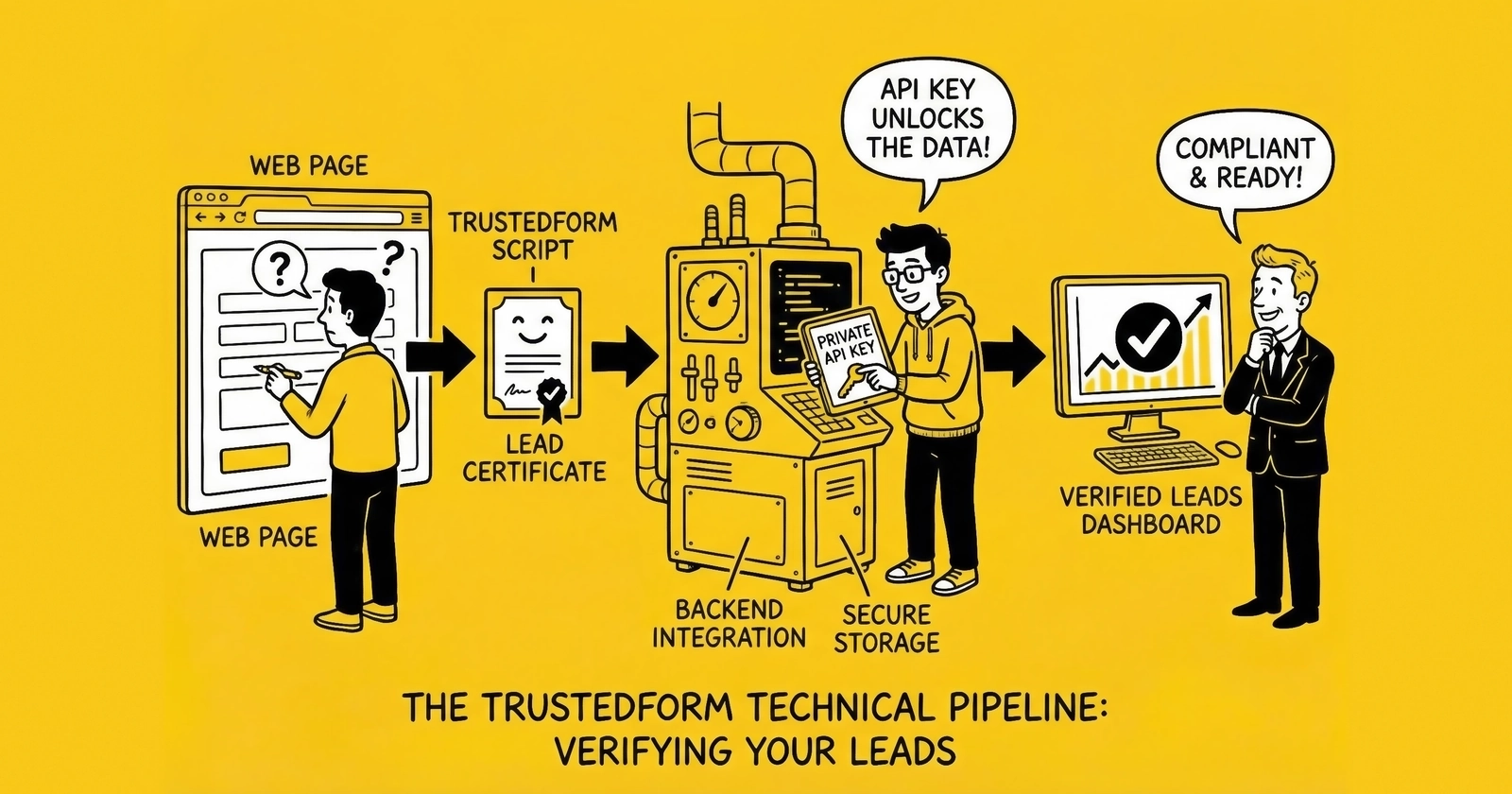
A comprehensive technical guide for implementing TrustedForm consent verification on your lead generation forms, from initial JavaScript installation through API integration, certificate claiming, and litigation-ready documentation practices.
The process server arrived at 2:47 PM on a Thursday. The TCPA class action complaint alleged 47,000 violations. Potential exposure: $70.5 million. The company’s annual revenue: $12 million. The average TCPA settlement exceeds $6.6 million.
The defense attorney’s first question: “Where is your consent documentation?”
The answer determined whether this case would settle for seven figures or be defended successfully. For companies with TrustedForm certificates properly implemented, claimed, and retained, the answer was often a visual session replay showing exactly what the consumer saw and did. For companies without third-party consent verification, the answer was often a settlement check.
TrustedForm, developed by ActiveProspect, has become the industry standard for consent documentation in lead generation. The platform certifies over 2.5 billion leads annually across more than 40,000 websites, processing over 6,000 requests per second at peak capacity. More importantly, TrustedForm certificates have been successfully used as evidence in TCPA litigation defense, providing the visual proof that internal database records cannot match.
This guide walks through complete TrustedForm implementation, from initial JavaScript installation to API integration for claiming certificates. Whether you are a publisher generating leads, a buyer validating purchased leads, or a broker managing both sides of the transaction, proper TrustedForm implementation is no longer optional infrastructure. It is litigation survival equipment.
Understanding TrustedForm Architecture
Before diving into implementation, understanding how TrustedForm works helps you make better technical decisions.
The Certificate Lifecycle
TrustedForm operates through a JavaScript snippet installed on your lead capture forms. When a consumer interacts with your form, the script monitors and records the session. Upon form submission, TrustedForm generates a unique certificate URL.
The process follows this sequence:
- Publisher installs TrustedForm JavaScript on lead capture pages
- Consumer lands on page; script begins monitoring the session
- Consumer completes form and submits
- TrustedForm generates unique certificate URL
- Certificate URL passes with lead data to buyer
- Buyer claims certificate using API key
- Claimed certificate is retained for configured period (up to 5 years)
The certificate exists independently of both publisher and buyer systems. Neither party can alter it after generation. This independence provides litigation value that internal records cannot match.
What Certificates Capture
A TrustedForm certificate contains extensive documentation of the consent transaction:
Timestamp and session data. Exact date and time of submission (to the second), session duration, and time zone.
Consumer environment. IP address, browser type, device information, operating system, and screen resolution.
Page documentation. URL where consent was captured, page source, and DOM state at submission.
Visual session replay. A playable recreation showing cursor movements, form field completion, scrolling behavior, and the consent disclosure displayed. This is TrustedForm’s signature feature. The session replay shows exactly what the consumer saw, not a static screenshot, but a video-like recreation of the entire form interaction.
Consent language capture. The specific disclosure text visible at the moment of submission.
Form field data. The phone number, email, and other data entered by the consumer.
Certificate metadata. Certificate age, claim status, fingerprint data, and behavioral signals.
TrustedForm Product Suite
TrustedForm offers several products serving different functions:
TrustedForm Certify. The core product that generates consent certificates. Implementation requires adding the JavaScript snippet to your forms. Certificate generation is free; retention beyond 90 days requires Retain. This is the foundation that most publishers implement first.
TrustedForm Retain. Extended certificate storage for up to 5 years. Given the 4-year TCPA statute of limitations, 5-year retention provides appropriate protection. Pricing starts at approximately $0.15 per certificate, scaling based on volume.
TrustedForm Verify. Programmatic consent verification for lead buyers. Rather than manually reviewing certificates, Verify can automatically confirm whether specific consent language was present, whether clear-and-conspicuous standards were met (including font size and contrast), and whether one-to-one consent for a specific brand was obtained.
TrustedForm Insights. Provides 22 proprietary data points per lead for behavioral analytics and fraud detection. Identifies bot activity, form manipulation, and suspicious patterns. ActiveProspect reports identifying over 200,000 bots weekly across the TrustedForm network.
JavaScript Implementation
The foundation of TrustedForm implementation is the JavaScript snippet that captures consumer interactions. Proper installation is critical because a misconfigured script produces certificates that may not provide the documentation you need.
Basic JavaScript Installation
The TrustedForm script is a single JavaScript snippet that loads on your lead capture pages. The standard implementation looks like this:
<script type="text/javascript">
(function() {
  var field = 'xxTrustedFormCertUrl';
  var provideReferrer = false;
  var invertFieldSensitivity = false;
  var tf = document.createElement('script');
  tf.type = 'text/javascript';
  tf.async = true;
  tf.src = 'https://api.trustedform.com/trustedform.js?provide_referrer='
    + escape(provideReferrer)
    + '&field=' + escape(field)
    + '&l=' + new Date().getTime() + Math.random()
    + '&invert_field_sensitivity=' + invertFieldSensitivity;
  var s = document.getElementsByTagName('script')[0];
  s.parentNode.insertBefore(tf, s);
})();
</script>
Place this script in the head section of your page, or at minimum before your form renders. The script must load before the consumer begins interacting with the form to capture the complete session.
Configuration Parameters
The TrustedForm script accepts several parameters that control its behavior:
field - The name of the hidden form field where the certificate URL will be injected. Default is ‘xxTrustedFormCertUrl’. Use a consistent field name across all forms to simplify downstream processing.
provide_referrer - When set to true, includes the HTTP referrer in the certificate data. This shows where the consumer came from before reaching your form. Set to true if referrer data matters for your compliance or fraud detection.
invert_field_sensitivity - Controls which form fields are captured in the certificate. By default, TrustedForm captures all visible field values. When set to true, it excludes fields unless specifically marked for capture. Use this for forms containing sensitive data that should not appear in certificates.
Hidden Field Configuration
TrustedForm automatically injects the certificate URL into a hidden form field. You must add this hidden field to your form:
<input type="hidden" name="xxTrustedFormCertUrl" id="xxTrustedFormCertUrl" value="" />When the consumer submits the form, this field will contain the certificate URL. Your form handler must capture and store this URL with the lead data.
The certificate URL format is:
https://cert.trustedform.com/[certificate-token]This URL is the key to accessing the certificate. Lose the URL, and you lose access to the certificate.
Script Placement Best Practices
Load early. The script should load as early as possible in the page lifecycle. Delayed loading means the session recording may miss early consumer interactions, potentially excluding critical evidence of consent disclosure visibility.
Avoid conditional loading. Do not load the TrustedForm script conditionally based on user behavior. The script should load for every page view, not just when you expect a form submission. This ensures complete session capture.
Test on all devices. Verify that the script loads and functions correctly across browsers, devices, and screen sizes. Implementation issues often manifest differently on mobile devices versus desktop browsers.
Validate certificate generation. After implementation, submit test leads and verify that valid certificate URLs are generated and captured with the lead data. A 100% certificate generation rate is the target.
Single-Page Application Considerations
For single-page applications (SPAs) where forms load dynamically, additional configuration may be required:
Reinitialize on route changes. The TrustedForm script may need reinitialization when the form loads dynamically. Implement event listeners to reload the script when the form component mounts.
Handle async form injection. If your form is injected into the DOM after page load, ensure the hidden field is present before TrustedForm attempts to inject the certificate URL.
Test complete user journeys. SPAs create complex user journeys where the consumer may navigate through multiple views before reaching the form. Test that certificates capture the complete relevant session, not just the final form view.
Form Configuration
Beyond the JavaScript installation, your forms require specific configuration to work effectively with TrustedForm.
Required Hidden Fields
Every form must include the hidden field for certificate URL capture:
<input type="hidden"
name="xxTrustedFormCertUrl"
id="xxTrustedFormCertUrl"
value="" />If you use TrustedForm Insights or other enhanced features, additional hidden fields may capture supplementary data:
<input type="hidden"
       name="xxTrustedFormToken"
       id="xxTrustedFormToken"
       value="" />
Consent Disclosure Requirements
TrustedForm documents what consumers see, but the platform does not validate whether what they see is legally compliant. Your consent disclosure must meet TCPA requirements independently:
Clear and conspicuous placement. The disclosure must be visible without scrolling on most devices. Avoid placing consent language at the bottom of long forms where consumers might not see it.
Readable typography. Use font sizes of at least 10pt (13px) with adequate contrast against the background. The 2024 Dahdah v. Rocket Mortgage case specifically cited “tiny gray font” as problematic.
Complete disclosure content. Include:
- Authorization for calls/texts using automated technology
- Identification of the specific seller(s) who may contact the consumer
- The phone number for which consent is granted
- Statement that consent is not a condition of purchase
Affirmative consent action. Use an unchecked checkbox that consumers must actively select. Pre-checked boxes violate PEWC requirements for affirmative consent.
Example compliant disclosure:
<label for="consent_checkbox">
  <input type="checkbox" id="consent_checkbox" name="consent" required />
  By checking this box, I provide my signature expressly consenting to
  receive marketing calls and texts from [Company Name] at the phone
  number I provided, including via automated technology. I understand
  consent is not required to make a purchase.
</label>
Field Sensitivity Configuration
TrustedForm captures form field values by default. For forms containing sensitive data that should not appear in certificates (SSN, credit card numbers, passwords), you have two options:
Option 1: Mark sensitive fields. Add the data-tf-sensitive attribute to fields that should be excluded:
<input type="text"
       name="ssn"
       data-tf-sensitive="true" />
Option 2: Invert sensitivity. Set invertFieldSensitivity to true in the script configuration, then mark fields you want captured with data-tf-not-sensitive:
<input type="text"
       name="phone"
       data-tf-not-sensitive="true" />
Always exclude financial account numbers, Social Security numbers, passwords, and other data that should never appear in consent certificates.
Multi-Step Form Configuration
For multi-step or wizard-style forms, special configuration ensures TrustedForm captures the complete interaction:
Single form element. The entire multi-step process should be contained within a single HTML form element, with steps shown/hidden via CSS or JavaScript rather than separate forms.
Persistent hidden field. The TrustedForm hidden field must remain in the DOM throughout the form journey, not just on the final step.
Final submission capture. The certificate is generated on the final form submission that sends data to your server. Ensure the hidden field value is included in that submission.
Certificate Claiming
Generating a certificate is only the first step. Certificates must be claimed to be retained and useful for compliance documentation.
Understanding the Claim Process
When TrustedForm generates a certificate, it exists in an “unclaimed” state. Unclaimed certificates:
- Expire after 90 days
- Cannot be used for Verify or Insights features
- May be purged before expiration under certain conditions
Claiming a certificate:
- Registers ownership with your API key
- Enables extended retention (if you have Retain)
- Unlocks Verify and Insights features
- Creates a permanent link between the certificate and your account
API Authentication
TrustedForm API access requires an API key, obtained from your ActiveProspect account dashboard. The API uses HTTP Basic authentication with your API key as the username and no password:
curl -u "your_api_key:" https://cert.trustedform.com/[certificate-token]Note the colon after the API key and no password. Some HTTP clients require explicit empty password handling.
Claiming via API
The basic claim request retrieves and claims a certificate:
curl -X GET \
  -u "your_api_key:" \
  "https://cert.trustedform.com/[certificate-token]"
A successful response returns certificate data including:
{
  "cert": {
    "token": "abc123...",
    "created_at": "2025-01-15T14:32:18Z",
    "expires_at": "2025-04-15T14:32:18Z",
    "ip": "192.168.1.1",
    "page_url": "https://example.com/quote",
    "user_agent": "Mozilla/5.0...",
    "claims": {
      "phone_1": "5551234567"
    }
  }
}
Extended Claim Parameters
Additional parameters enhance the claim request:
phone_1, phone_2, phone_3 - Phone numbers to validate against certificate data:
curl -X GET \
  -u "your_api_key:" \
  "https://cert.trustedform.com/[token]?phone_1=5551234567"
The response includes a match indicator confirming whether the claimed phone matches certificate data.
email - Email address to validate:
curl -X GET \
  -u "your_api_key:" \
  "https://cert.trustedform.com/[token]?email=consumer@example.com"
reference - Your internal lead ID for linking certificates to your records:
curl -X GET \
  -u "your_api_key:" \
  "https://cert.trustedform.com/[token]?reference=lead_12345"
vendor - Identify the lead source for tracking and auditing:
curl -X GET \
  -u "your_api_key:" \
  "https://cert.trustedform.com/[token]?vendor=acme_leads"
Claim Timing Best Practices
Claim immediately at lead purchase. Do not wait until you need to defend a lawsuit to claim certificates. Certificates should be claimed at the moment you receive a lead, before any contact is attempted.
Fail-safe for claim failures. API calls can fail for network issues, rate limits, or temporary outages. Implement retry logic with exponential backoff. If claims fail after retries, flag the lead for manual review.
Track claim success rates. Monitor what percentage of leads successfully generate claimed certificates. Certificate generation below 95% indicates implementation problems requiring investigation.
Batch Claiming
For high-volume operations processing thousands of leads daily, batch claiming improves efficiency. The TrustedForm API supports concurrent requests, but implement sensible rate limiting:
import requests
from concurrent.futures import ThreadPoolExecutor
from time import sleep

def claim_certificate(cert_url, api_key, lead_data):
    try:
        response = requests.get(
            cert_url,
            auth=(api_key, ''),
            params={
                'phone_1': lead_data['phone'],
                'email': lead_data['email'],
                'reference': lead_data['lead_id']
            },
            timeout=10
        )
        return response.json()
    except Exception as e:
        return {'error': str(e)}

# Process leads in batches with controlled concurrency
with ThreadPoolExecutor(max_workers=10) as executor:
    results = executor.map(
        lambda lead: claim_certificate(
            lead['cert_url'],
            api_key,
            lead
        ),
        leads_to_process
    )
Respect API rate limits. ActiveProspect publishes rate limit guidelines; exceeding them may result in throttling or temporary blocks.
Certificate Verification
For lead buyers, claiming certificates is only part of the process. Verification confirms that the documented consent meets your requirements.
Manual Certificate Review
Access claimed certificates through the TrustedForm dashboard or via the certificate URL. Manual review should examine:
Session replay. Watch the consumer’s interaction with the form. Key questions:
- Was the consent disclosure visible without scrolling?
- Did the consumer scroll past or hover near the consent language?
- Was the checkbox actively selected (not pre-checked)?
- How long did the consumer spend on the page?
Consent language. Read the exact disclosure captured in the certificate:
- Does it identify your company specifically (or the appropriate seller)?
- Does it authorize automated calls and texts?
- Is it presented clearly and conspicuously?
- Does it state consent is not required for purchase?
Phone number match. Confirm the phone number in the certificate matches the phone number you intend to call.
Timestamp. Verify the certificate age is appropriate. Very old certificates (months old) may indicate recycled or aged leads.
Automated Verification with TrustedForm Verify
TrustedForm Verify automates certificate validation, enabling programmatic consent checking at lead acquisition:
curl -X POST \
  -u "your_api_key:" \
  -H "Content-Type: application/json" \
  -d '{
    "consent": {
      "text": "ABC Insurance Company",
      "type": "contains"
    }
  }' \
  "https://cert.trustedform.com/[token]/verify"
Verify checks include:
Text matching. Confirm specific text appears in the consent disclosure:
{
  "consent": {
    "text": "ABC Insurance Company",
    "type": "contains"
  }
}
Clear and conspicuous validation. Check that consent language meets visibility standards:
{
  "consent": {
    "clear_and_conspicuous": true
  }
}
Age verification. Ensure the certificate is not older than acceptable:
{
  "age": {
    "max_seconds": 86400
  }
}
Verify returns a pass/fail result with details about what passed or failed, enabling automatic lead acceptance or rejection based on consent quality.
Verification Integration Points
For lead buyers, integrate verification at key workflow points:
Pre-purchase verification. In ping/post systems, verify certificates during the ping before committing to purchase:
Ping received -> Parse certificate URL -> Verify certificate ->
If pass: Return bid -> If fail: Decline
Post-purchase validation. After purchasing leads, verify certificates before leads enter calling queues:
Lead purchased -> Claim certificate -> Verify certificate ->
If pass: Route to calling -> If fail: Flag for return
Pre-call confirmation. As an additional safeguard, verify consent before each outbound contact:
Lead selected for call -> Retrieve certificate -> Confirm still valid ->
If valid: Proceed with call -> If invalid: Remove from queue
Retention and Storage
Certificates are only useful if available when needed, which means proper retention aligned with TCPA’s 4-year statute of limitations.
TrustedForm Retain
TrustedForm Retain extends certificate storage from the default 90 days to up to 5 years. For any operation facing TCPA exposure, Retain is not optional.
Retain is enabled at the account level and applies to claimed certificates. Pricing scales with volume, starting at approximately $0.15 per certificate.
Retention Period Selection
The minimum retention period should be 4 years (the TCPA statute of limitations) plus buffer. Five-year retention provides adequate margin for:
- Tolling provisions that may extend limitations periods
- Class action certification timing
- Discovery and pre-trial procedures
- Appeals and post-judgment proceedings
Some operations retain certificates for 6-7 years to accommodate extended litigation timelines.
Local Storage Considerations
While TrustedForm retains certificates in their system, you should also store certificate URLs in your own systems:
Associate with lead records. Certificate URLs should be stored as a field in your lead database, permanently linked to the lead record.
Enable retrieval by phone number. Structure your data to enable certificate lookup by phone number. When a lawsuit arrives alleging calls to a specific number, you need to quickly retrieve all certificates associated with that number.
Backup certificate data. While TrustedForm provides reliable storage, maintain your own backups of certificate URLs. Store the URL, claim timestamp, phone number, and any reference IDs.
Retention beyond certificates. Even after certificates expire, maintain records of certificate URLs and claim metadata. This demonstrates you had certificates, even if the certificates themselves are no longer available.
Certificate Access After Claiming
Claimed certificates remain accessible via the certificate URL:
curl -u "your_api_key:" \
  "https://cert.trustedform.com/[certificate-token]"
For litigation, you may need to download certificate data including the session replay. Work with ActiveProspect support to obtain complete certificate packages for legal proceedings.
Integration Architecture
TrustedForm integration touches multiple systems. Proper architecture ensures certificates flow correctly through your lead lifecycle.
Publisher Integration
For publishers generating leads, integration focuses on certificate generation and transmission:
Form Load -> TrustedForm Script Loads -> Session Recording Begins
     |
Form Submission -> Certificate URL Generated -> Hidden Field Populated
     |
Server Receives Form Data -> Extract Certificate URL
     |
Lead Stored with Certificate URL -> Lead Transmitted to Buyer(s)
Key implementation points:
Form handler capture. Your server-side form handler must extract and store the certificate URL from the form submission. In PHP:
$certUrl = $_POST['xxTrustedFormCertUrl'];
$lead = [
    'name' => $_POST['name'],
    'phone' => $_POST['phone'],
    'email' => $_POST['email'],
    'trustedform_cert_url' => $certUrl
];
// Store lead with certificate URL
saveLead($lead);
API transmission. When sending leads to buyers via API, include the certificate URL:
{
  "lead": {
    "first_name": "John",
    "last_name": "Doe",
    "phone": "5551234567",
    "email": "john@example.com",
    "trustedform_cert_url": "https://cert.trustedform.com/abc123..."
  }
}
Buyer Integration
For buyers receiving leads, integration focuses on certificate claiming and verification:
Lead Received -> Extract Certificate URL -> Claim Certificate
     |
Claim Success -> Store Certificate Data -> Verify Consent
     |
Verification Pass -> Route to Sales Queue
     |
Verification Fail -> Return Lead or Flag for Review
Key implementation points:
Immediate claiming. Claim certificates immediately upon lead receipt, not at the time of calling. Delayed claiming risks certificate expiration.
Claim validation. Verify the claim response indicates success. Handle claim failures gracefully:
def process_lead(lead):
    cert_url = lead.get('trustedform_cert_url')

    if not cert_url:
        reject_lead(lead, 'Missing certificate URL')
        return

    claim_result = claim_certificate(cert_url)

    if claim_result.get('error'):
        reject_lead(lead, f'Certificate claim failed: {claim_result["error"]}')
        return

    # Store claimed certificate data with lead
    lead['certificate_claimed_at'] = datetime.now()
    lead['certificate_data'] = claim_result

    # Proceed with verification
    verify_and_route(lead)
Distribution Platform Integration
Lead distribution platforms (boberdoo, LeadsPedia, LeadExec, Lead Prosper, LeadConduit) typically offer TrustedForm integration. Configuration varies by platform but generally includes:
Inbound field mapping. Map the incoming certificate URL field to the platform’s TrustedForm field.
Claim configuration. Enable automatic claiming with your API key.
Verification rules. Configure acceptance criteria based on certificate verification results.
Retention settings. Enable automatic retention for claimed certificates.
LeadConduit, ActiveProspect’s own distribution platform, offers native TrustedForm integration with streamlined configuration.
Troubleshooting Common Issues
Implementation challenges are common. Here are solutions to frequent problems:
Certificates Not Generating
Symptom: Form submissions arrive without certificate URLs.
Possible causes:
- JavaScript not loading (check browser console for errors)
- Script loading after form interaction begins
- Content security policy blocking the script
- Hidden field missing or incorrectly named
Solutions:
- Verify the script loads in browser developer tools (Network tab)
- Move script earlier in page load sequence
- Add
https://api.trustedform.comto Content Security Policy - Confirm hidden field name matches script configuration
Certificate URL Malformed
Symptom: Certificate URLs are incomplete or contain unexpected characters.
Possible causes:
- Form submission encoding issues
- Hidden field value truncated
- Character escaping problems in transmission
Solutions:
- Ensure form uses proper encoding (
application/x-www-form-urlencodedormultipart/form-data) - Check that hidden field value is not modified by other scripts
- Verify URL is transmitted without additional encoding
Claim Failures
Symptom: API claims return errors or fail silently.
Possible causes:
- Invalid API key
- Certificate already expired
- Rate limiting
- Network issues
Solutions:
- Verify API key is correct and active
- Check certificate age (90-day default expiration for unclaimed)
- Implement retry logic with backoff
- Monitor for API status issues
Session Replay Missing Content
Symptom: Certificate replay does not show expected form content.
Possible causes:
- Dynamic content loading after TrustedForm initialized
- iFrame-based forms not captured
- Shadow DOM elements not recorded
Solutions:
- Ensure TrustedForm script loads before dynamic content
- For iFrame forms, install TrustedForm on the iFrame source page
- Consult ActiveProspect documentation for Shadow DOM handling
Phone Number Mismatch
Symptom: Certificate verification fails phone matching even when phone numbers should match.
Possible causes:
- Phone number formatting differences
- Phone captured in different field than expected
- Consumer entered phone after session recording began
Solutions:
- Normalize phone formats before matching (strip non-digits)
- Verify which form field TrustedForm captured the phone from
- Review session replay to see when phone was entered
Platform-Specific Implementation
TrustedForm integrates with popular form platforms and content management systems.
WordPress Integration
For WordPress sites, TrustedForm can integrate via:
Theme modification. Add the TrustedForm script to your theme’s header.php or via a header script plugin.
Form plugin integration. Major form plugins (Gravity Forms, WPForms, Contact Form 7) support hidden field configuration. Add the TrustedForm hidden field to your forms and use a plugin to inject the JavaScript.
Gravity Forms example:
- Add a hidden field named
xxTrustedFormCertUrlto your form - Add the TrustedForm script via theme or plugin
- TrustedForm automatically populates the hidden field
Landing Page Platforms
Unbounce, Leadpages, Instapage: These platforms support custom JavaScript and hidden form fields. Add the TrustedForm script to page settings and configure a hidden field to capture the certificate URL.
ClickFunnels: Use the tracking code settings to add TrustedForm JavaScript. Add a hidden input element to your form via custom HTML.
HubSpot: HubSpot forms require the TrustedForm script added to page settings and a hidden field configured in the form builder. HubSpot’s form handling automatically captures hidden field values.
Custom Form Implementations
For custom-built forms, implementation is straightforward:
- Add the TrustedForm script to your page head
- Add the hidden input field to your form HTML
- Ensure your form handler captures the hidden field value
- Store the certificate URL with lead data
Test thoroughly across browsers and devices after implementation.
Cost-Benefit Analysis
Understanding TrustedForm economics helps justify implementation investment.
Pricing Structure
Certify (certificate generation): Free. Any form with the TrustedForm script generates certificates at no cost.
Retain (extended storage): Starting at approximately $0.15 per certificate, with volume discounts. Annual contracts (typically $24,000+ minimum) provide additional discounts.
Verify (automated validation): Per-verification pricing starting at approximately $0.15.
Insights (behavioral data): Enterprise pricing, typically bundled with other products.
Cost Per Lead Impact
For a lead sold at $30:
- TrustedForm cost (Retain + Verify): $0.30
- Cost as percentage of revenue: 1%
For a lead sold at $50:
- TrustedForm cost: $0.30
- Cost as percentage of revenue: 0.6%
Risk Mitigation Value
TCPA statutory damages: $500 to $1,500 per violation.
A single TCPA violation creates exposure exceeding the TrustedForm cost for thousands of leads.
A class action involving 10,000 leads at $500 per violation: $5 million exposure. TrustedForm cost for 10,000 leads at $0.30: $3,000.
If TrustedForm documentation prevents one class action over the life of your operation, the ROI is astronomical.
Break-Even Analysis
TrustedForm pays for itself if it prevents TCPA liability on 0.06% of leads (assuming $30 leads and $500 per violation).
At 0.06%, one in every 1,667 leads would need to result in a successful defense attributable to TrustedForm documentation to break even. Given that TrustedForm certificates are regularly used in successful TCPA defense, this threshold is easily exceeded.
Frequently Asked Questions
1. What is TrustedForm and why do I need it for lead generation?
TrustedForm is a consent verification platform that documents consumer interactions with your lead capture forms. When a consumer fills out your form, TrustedForm creates a certificate containing visual session replay, timestamp, IP address, and the exact consent disclosure displayed. Under TCPA regulations, the burden of proving consent rests entirely on the caller. Without third-party documentation like TrustedForm, your defense relies on internal records that opposing counsel will challenge as self-serving or manipulable. TrustedForm certificates provide independent, tamper-resistant evidence that has been successfully used in TCPA litigation defense.
2. How do I install TrustedForm on my website?
Installation requires adding a JavaScript snippet to your lead capture pages and a hidden form field to your forms. The JavaScript loads from api.trustedform.com and monitors consumer interactions. Upon form submission, it generates a certificate URL and injects it into the hidden field. Your form handler must capture this hidden field value and store it with the lead data. Total implementation time for a standard form is typically 30 minutes to 2 hours depending on your platform.
3. What is the difference between TrustedForm Certify, Verify, and Retain?
Certify generates certificates and is free. Every form with the TrustedForm script generates certificates at no cost, but unclaimed certificates expire after 90 days. Retain extends certificate storage to up to 5 years for claimed certificates, priced per certificate starting at $0.15. Verify enables automated consent validation, programmatically checking whether certificates contain required consent elements. For TCPA compliance, most operations need at minimum Certify plus Retain; Verify adds efficiency for high-volume buyers.
4. How long should I retain TrustedForm certificates?
The TCPA has a 4-year statute of limitations, meaning a lead generated today could become a lawsuit in 2029. Retain certificates for at least 5 years to cover the full exposure window plus margin for tolling provisions and litigation timing. TrustedForm Retain offers storage up to 5 years. Some operations extend retention to 6-7 years to accommodate extended litigation timelines.
5. What does the TrustedForm session replay actually show?
The session replay is a video-like recreation of the consumer’s interaction with your form. It shows cursor movements (where they clicked and hovered), scrolling behavior, form field completion including typing, the visibility and placement of consent disclosures, and the submit action. When a plaintiff claims they never saw the consent disclosure, the replay can show their cursor directly above clearly visible consent language before clicking submit. This visual evidence is TrustedForm’s primary differentiator for litigation defense.
6. Can lead buyers see what consumers typed into my form?
By default, TrustedForm captures visible form field values. For sensitive data (SSN, credit card numbers, passwords), you can mark fields as sensitive using the data-tf-sensitive attribute, which excludes them from certificates. Alternatively, set invertFieldSensitivity to true in the script configuration and explicitly mark which fields should be captured. Always exclude financial account numbers and other sensitive data from certificates.
7. What happens if I do not claim a TrustedForm certificate?
Unclaimed certificates expire after 90 days and are deleted. They cannot be recovered after expiration. Unclaimed certificates also cannot be used with Verify or Insights features. Claim certificates immediately at lead acquisition, not when you need them for litigation. Implementing automatic claiming in your lead processing workflow ensures certificates are claimed consistently.
8. How do I integrate TrustedForm with my lead distribution platform?
Major distribution platforms (boberdoo, LeadsPedia, LeadExec, Lead Prosper, LeadConduit) offer TrustedForm integration. Configuration typically involves mapping the incoming certificate URL field, enabling automatic claiming with your API key, and configuring acceptance rules based on verification results. LeadConduit, ActiveProspect’s own platform, offers native integration with streamlined setup. Consult your platform’s documentation for specific configuration steps.
9. Does having a TrustedForm certificate guarantee my consent is compliant?
No. TrustedForm documents what happened, but does not guarantee compliance. If your consent disclosure was deficient, hidden in fine print, or failed to identify the specific seller, the certificate simply documents your non-compliance. A certificate showing a pre-checked checkbox documents a TCPA violation, not valid consent. You must ensure your underlying consent mechanisms meet legal requirements. TrustedForm provides evidence of what consumers saw and did; it does not validate that what they saw was compliant.
10. What is the cost of TrustedForm and is it worth it?
Certificate generation (Certify) is free. Retain costs approximately $0.15 per certificate with volume discounts. Verify adds approximately $0.15 per verification. For a typical lead sold at $30-50, TrustedForm costs represent 0.5% to 1% of lead revenue. Given that a single TCPA violation carries $500-$1,500 in statutory damages, TrustedForm pays for itself if it prevents liability on 0.06% of leads. The math is not close: consent verification is among the highest-ROI investments in lead generation operations.
Key Takeaways
-
TrustedForm certificates provide independent, third-party documentation of consent that has been successfully used in TCPA litigation defense. The visual session replay shows exactly what consumers saw and did, evidence that internal database records cannot match.
-
Implementation requires a JavaScript snippet on your lead pages and a hidden form field to capture the certificate URL. Claim certificates immediately at lead acquisition using the API, not when litigation arrives. Unclaimed certificates expire after 90 days.
-
Retain certificates for at least 5 years given the TCPA’s 4-year statute of limitations. TrustedForm Retain extends storage up to 5 years, starting at approximately $0.15 per certificate.
-
Certificates document what happened but do not guarantee compliance. Deficient consent language, pre-checked boxes, or hidden disclosures documented in a certificate provide evidence of non-compliance, not defense. Verify your underlying consent mechanisms meet legal requirements independently.
-
The economics are unambiguous: TrustedForm costs $0.15-$0.30 per lead while TCPA violations cost $500-$1,500 each. TrustedForm pays for itself if it prevents liability on 0.06% of leads.
-
Integrate TrustedForm verification into your lead workflow at multiple points: before purchase (if using ping/post), after purchase before lead enters calling queues, and as a pre-call confirmation.
-
Store certificate URLs permanently with lead records, enable retrieval by phone number, and maintain backups of certificate data. When litigation arrives, you need immediate access to all certificates associated with the disputed phone numbers.
-
Lead buyers should not assume a certificate means consent is valid. Claim the certificate, review the session replay, verify the disclosure language, confirm phone number matching, and validate against your compliance requirements before calling.
This guide reflects TrustedForm capabilities and best practices as of late 2025. TrustedForm is a product of ActiveProspect. Features, pricing, and API specifications evolve; consult ActiveProspect documentation for current information. This guide does not constitute legal advice. Consult qualified TCPA counsel for compliance requirements specific to your operations.
Additional Resources
- TrustedForm Documentation: community.activeprospect.com
- ActiveProspect Support: support@activeprospect.com
- API Status: status.activeprospect.com
- LeadConduit Integration: Documentation available at activeprospect.com/leadconduit